Installing Python
Installing Python means setting up the Python software on your computer so you can start writing and running programs. It is the first step in learning Python programming.
Installing Python is like installing a game before playing it you must set it up before using it.
Once installed, your computer can understand Python code and execute programs.
This is the first step in learning python programming.
There are two ways to write and execute python programs.
1. Using the online editors (online platforms).
-directly with the help of internet, you can write and execute your python
programs.
main.py
main --> name of your program
.py --> extension of your file name (it is a python program)
if there is no internet connection, you cannot execute your programs.
2. Using the installation of python software in your computer.
once you installed, even if you don't have internet connection you can still write and execute your python programs.
Why Python Installation is Important
Installing Python helps you:
- Start coding in Python
- Run Python programs
- Practice coding on a computer
- Use Python on Windows, macOS, and Linux
- Begin learning with an easy setup
Quick Installation Steps
Follow these simple steps to install Python:
- Go to www.python.org
- Click Download Python
- Open the downloaded file
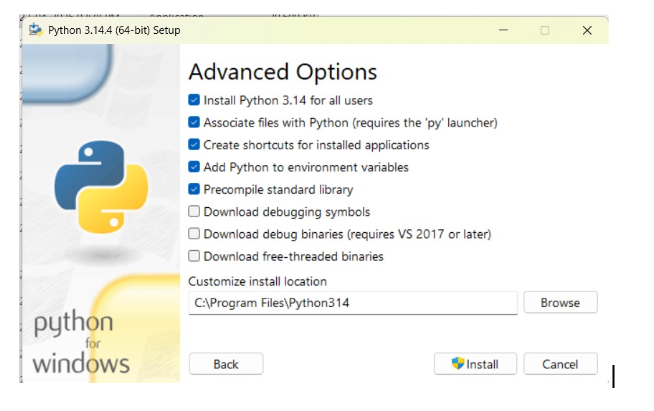
- Check Add Python to PATH
- Click Install Now
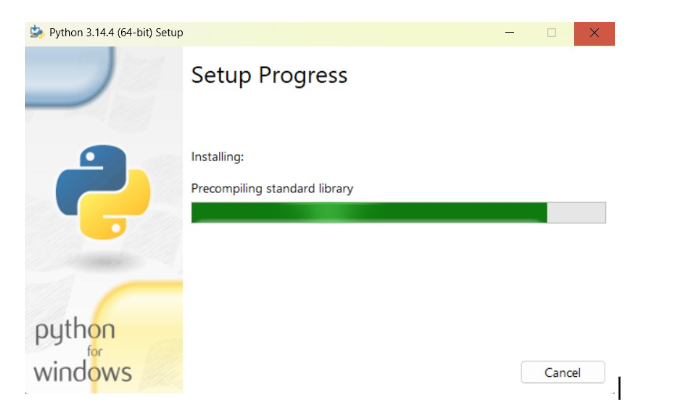
- Wait for installation
- Click Finish
Detailed Installation Steps
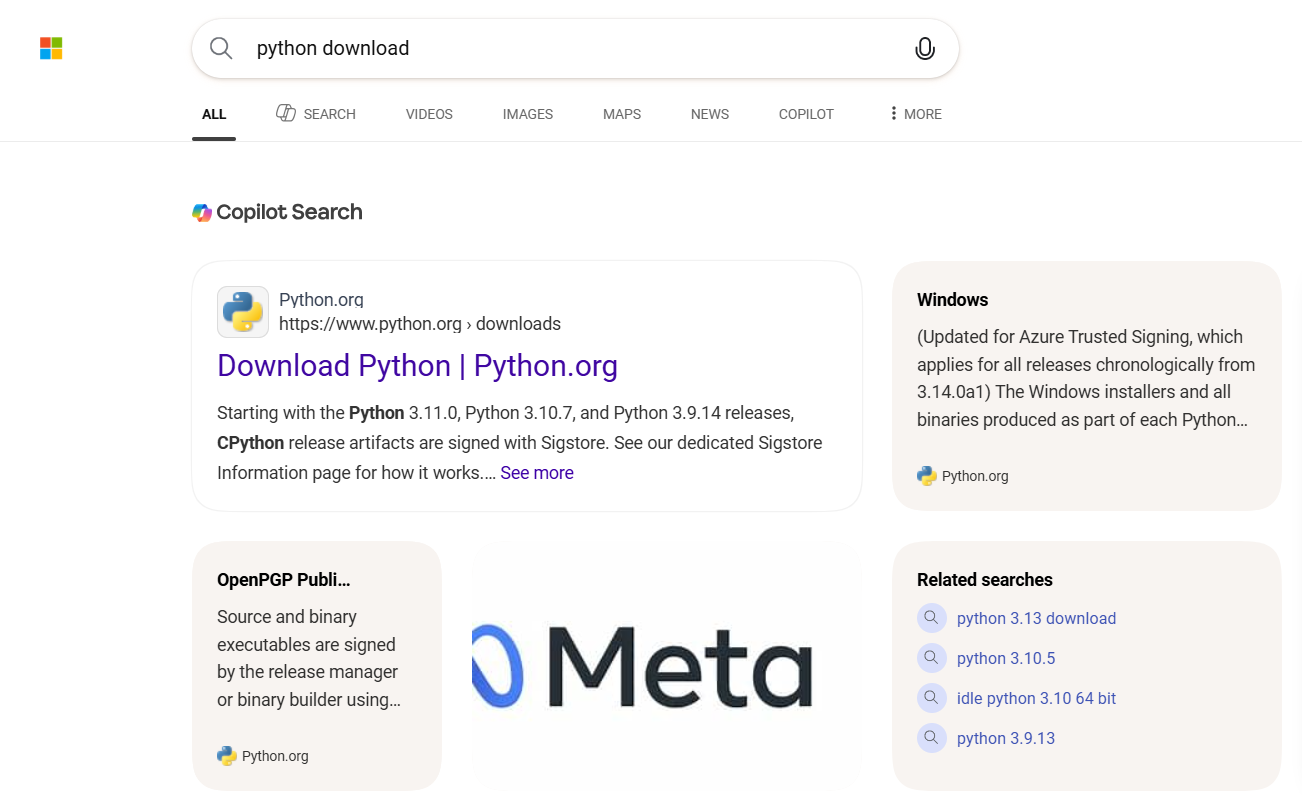
Step 1: Download Python
- Open a web browser
- Search Python Downloads
- Open the official website python.org
- Click Downloads
- Select the latest Python 3.x version
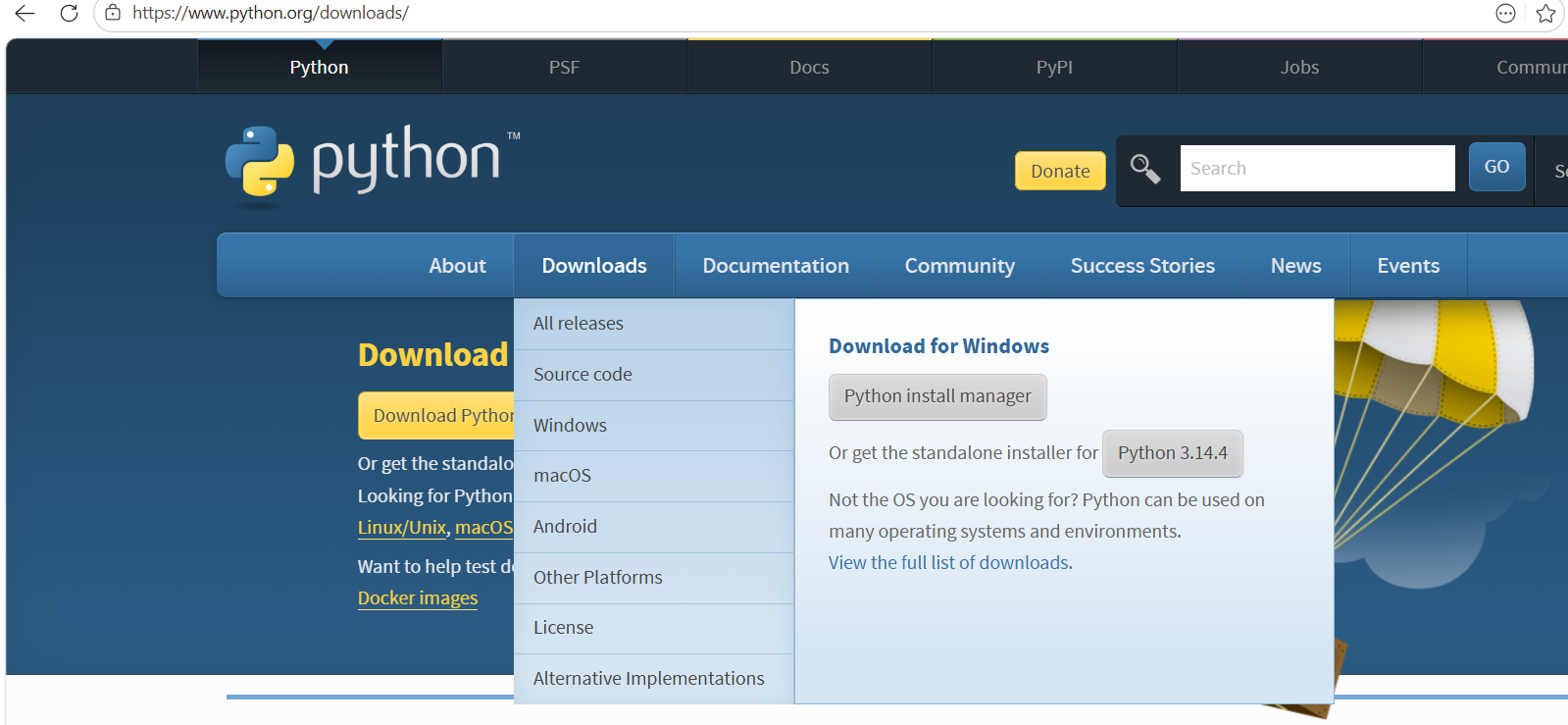
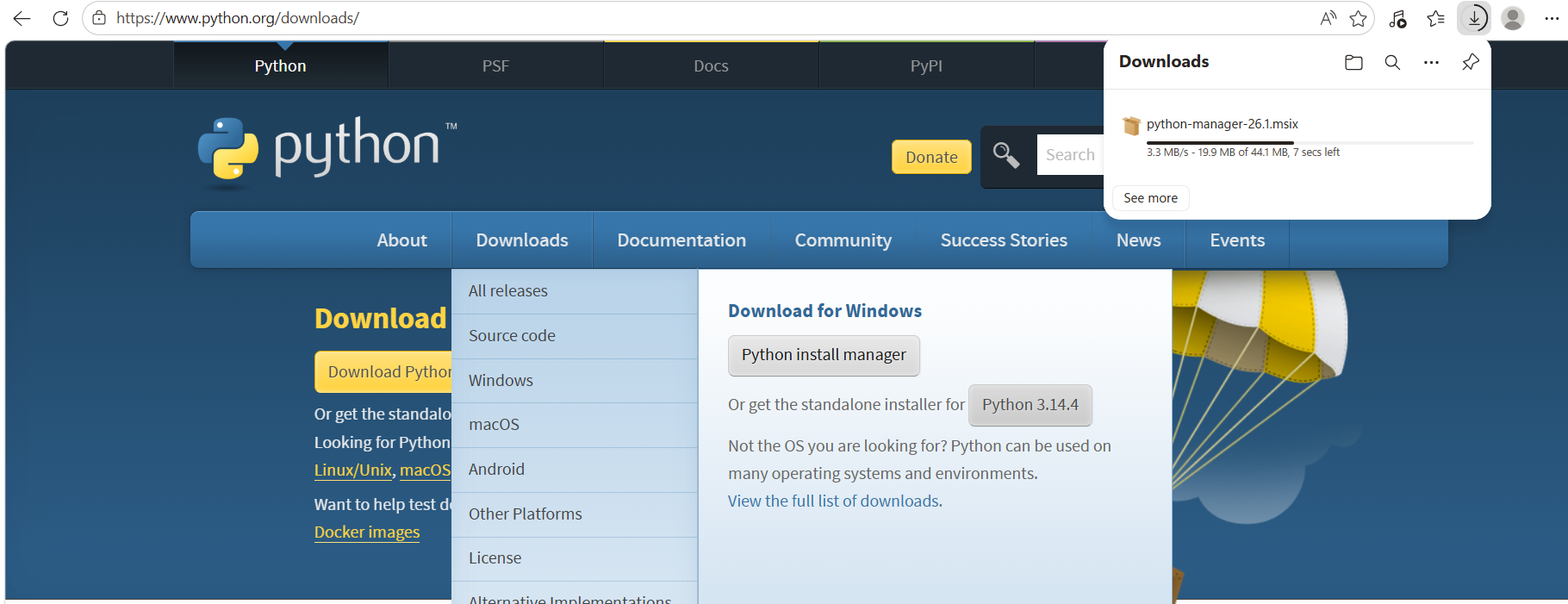
Step 2: Run the Installer
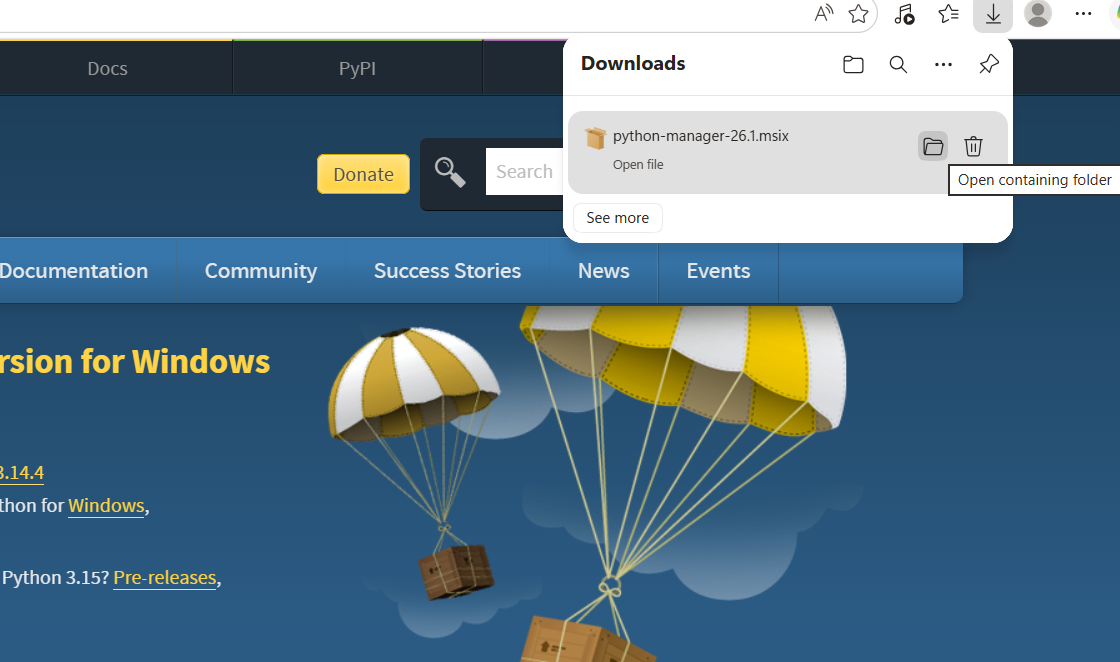
Open the downloaded setup file.
The Python installer window appears.
Step 3: Configure Installation
✔ Select Add Python to PATH
This is very important because it helps your computer recognize Python commands.
(Optional) Click:
Customize Installation
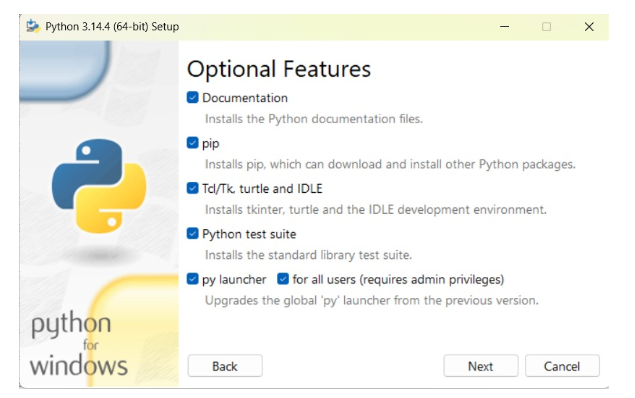
Step 4: Install Python
- Select available options
- Click Next
- Click Install
Wait for installation to complete.
Step 5: Complete Installation
Click:
Close
Python is now installed.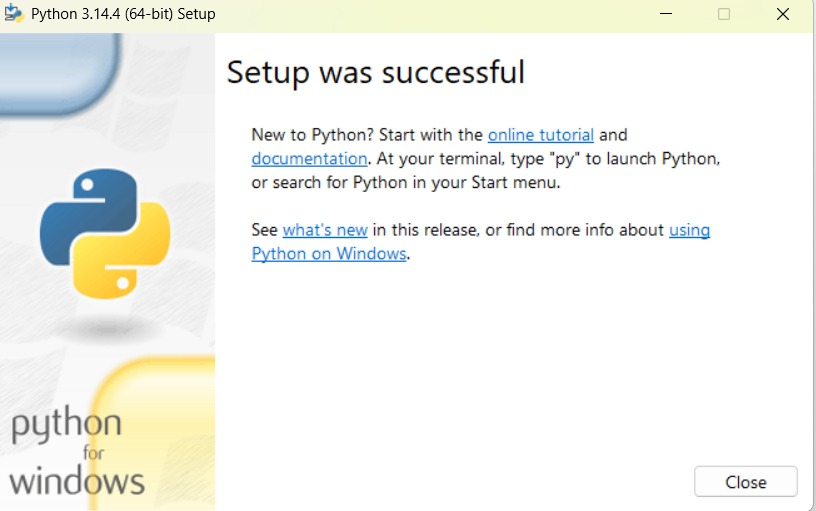
Open Python After Installation
Open Start Menu
Search:
- Python
- IDLE (Python)
Click to open it.
Note
IDLE comes with Python.
You can also use:
- Visual Studio Code
- Notepad
Verify Python Installation
Using Command Prompt (Windows)
Type:
python --versionUsing Terminal (Mac/Linux)
python3 --versionExample Output
Python 3.x.xThis confirms Python is installed.
Install a Python Package
Example:
pip install numpyThis installs the NumPy package.
Run Your First Python Program
Open IDLE and type:
print("Hello")
Output
HelloSaving a Python File
Click:
File → Save As
Example filename:
hello.py
The .py extension means it is a Python file.
Practical Example
Installing Python is like setting up a kitchen before cooking.
First install the tools, then start creating.
➤ Summary
- Python installation is the first step in coding
- Always download from python.org
- Add Python to PATH is very important
- Use the latest Python version
- Start practicing after installation
➤ Tips
- Ask a teacher or parent for help if needed
- Practice simple programs after installation
- Start with basic print() programs